Accept Overpayments for A/R Invoices and Auto Allocate Unused Balance to Unapplied Payments
Stay is enhanced to accept overpayments for an A/R invoice and automatically allocate the unused balance amount to Unapplied Payments. Previously, the Make Payment button on the Make a Payment screen was disabled when users tried to make payment for an amount greater than the invoice amount.
For example, a user is trying to make a payment of $1000 using the credit card/cash/check payment method for an invoice with a balance of $600, the user will be allowed to proceed with the payment and the unused balance of $400 will be allocated to the Unapplied Payments automatically.
Users must have the existing ARUnappliedPayments permission to use this feature.
When users try to make a payment for an invoice by selecting the Pay Manually option on the Make a Payment screen for an amount greater than the invoice amount, the Payment Exceeds Balance Due screen appears that requests users to confirm the allocation of the unused balance amount to unapplied payments.
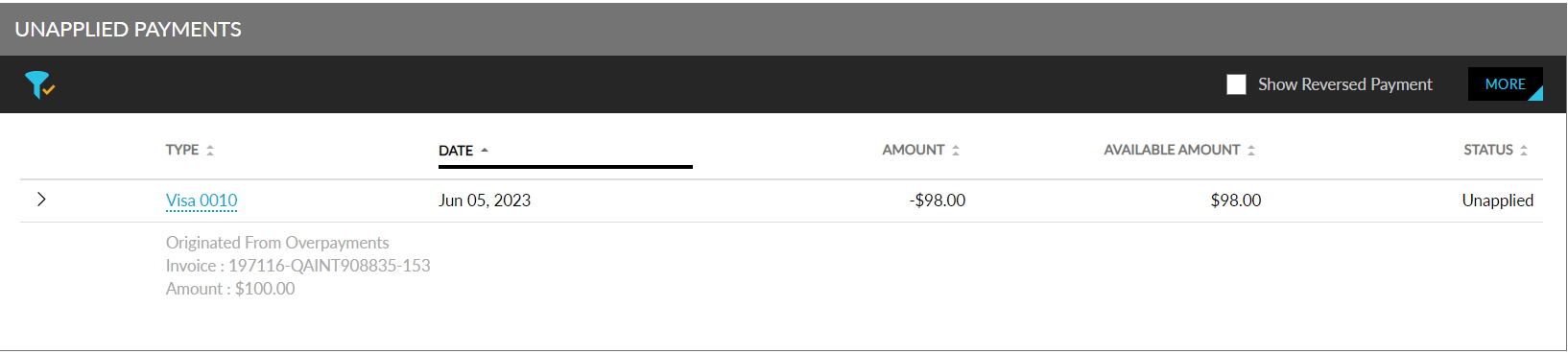
When users click Yes, the payment is processed for the invoiced amount and the status of the selected invoice is updated as Closed. The unused balance amount, that is, the amount entered by the user - the total due of the invoice, is updated in the Unapplied Payments section with the following description under the Type column with the Status as Unapplied Payments:
Originated from Overpayments
Invoice: <invoice number>
Amount: $XX
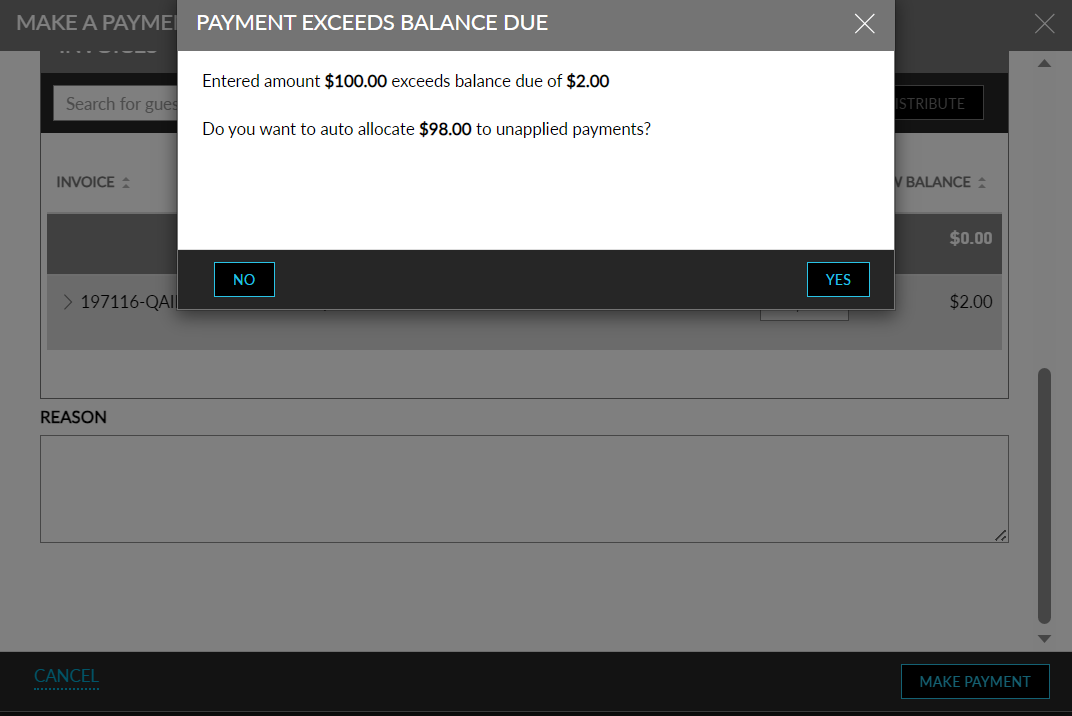
When users click No in the Payment Exceeds Balance Due screen, users are navigated back to the Make a Payment screen, where the users should manually correct the payment amount to match the balance due of the selected invoice.
The Payment Exceeds Balance Due screen appears only when users use credit card payment method. For other payment methods, the excess payment is processed for the selected invoice and the unused balance is updated in the Unapplied Payments section directly.
To support this enhancement, a new flag, Allow Overpayments to Unapplied Payments, is added to the following screens:
-
Accounting tab on the Guest Accounting screen (Settings ➜Guest Accounting ➜Accounting). When this flag is enabled at the property level, users can make excess payments for invoices in all the A/R accounts in the property.
-
Summary section on the Accounts Receivable tab of the A/R account. When this flag is enabled at the account level, users can make excess payments for that A/R account.
-
A/R Account Default Settings section of the Manage and Apply Settings screen (A/R account ➜All Properties ➜Settings). When enabled, users can make excess payments in all the properties associated with the A/R account.